Spam & Virus ProtectionHelpful InformationGetting a Session Expired message? ( click here )
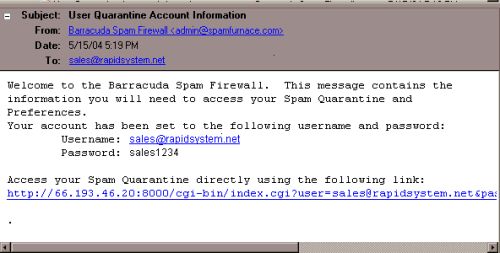
TutorialUser Quarantine Account InformationThe first time the Barracuda Spam Firewall quarantines (holds) email from your Inbox an account will be created for you and you will receive an email message similar to the one below giving you your Username and Password to login to the system. You may use the link provided in the message to login or use the link on this page that reads "Login Here" (above-left).
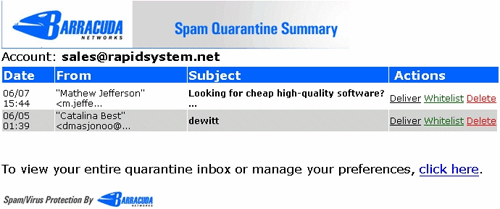
Spam Quarantine SummaryOnce a day, if mail has been quarantined, you will be emailed a message titled "Spam Quarantine Summary" (see sample below). The messages listed in the Summary are not all the emails classified as spam by the system, they are only the messages that might be spam. The rest of the messages that are known to be spam have already been rejected by the system. You can quickly manage the action you would like to take on an email message from the Summary message window or login to the system using the link provided to take action on a group of messages all at once or to review a message(s) before taking action. Please read below to see how to use the options listed under Actions in the Quarantine Summary window.
To the right of each message are Actions that you can take on a message. The options are: Deliver, Whitelist, and Delete.
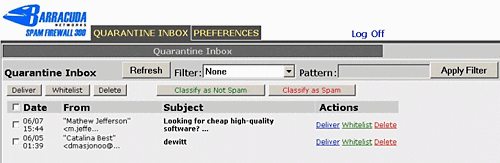
Accessing Your Quarantine InboxAt the bottom of the email sent to you there is a link you can click on to login. Once you click the link a screen such as the one below will appear in your browser.
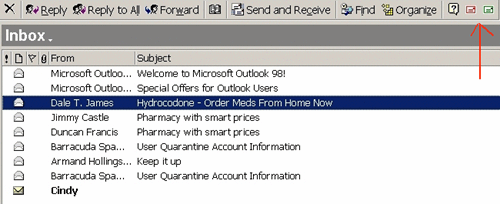
The screen above provides some other options over the Quarantine Summary email message you received. You have the Deliver, Whitelist and Delete options but you can also classify email as spam/not spam. These additional options teach the system what you perceive to be spam and not spam. Simply tag a message using the check box next to the message then click the button at the top to classify as spam or not spam. Not spam messages will be sent on to you. Once you have classified a message(s) as spam, you may delete it and all other messages you don't want from the Quarantine Inbox. Classify Messages in Your Inbox with a Mail PluginIf you use Outlook (not Outlook Express) you can download a plug-in that will allow you to classify messages that made it to your Inbox. The plug-in adds a red and green envelope to the Outlook tool bar on your computer. You can highlight a message and then click the red envelope to tag the message as spam or the green envelope for not spam. Your selections are sent back to the firewall so it learns as you go. If you tag a message as spam the spam firewall is updated and the message is deleted from your Inbox. You can obtain the Outlook plug-in here.
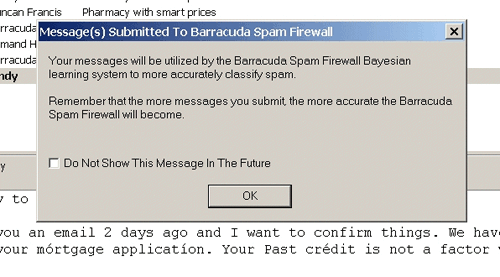
The first time you use the plug-in the screen as shown below will appear. This is to let you know what the plug-in does. You can check the box "Do Not Show This Message In The Future" before clicking OK so that this message will not pop up each time.
[ Back to Top ] |